
Signing · How-to
How to Create an Electronic Signature: Free Methods and When They Actually Count in the EU
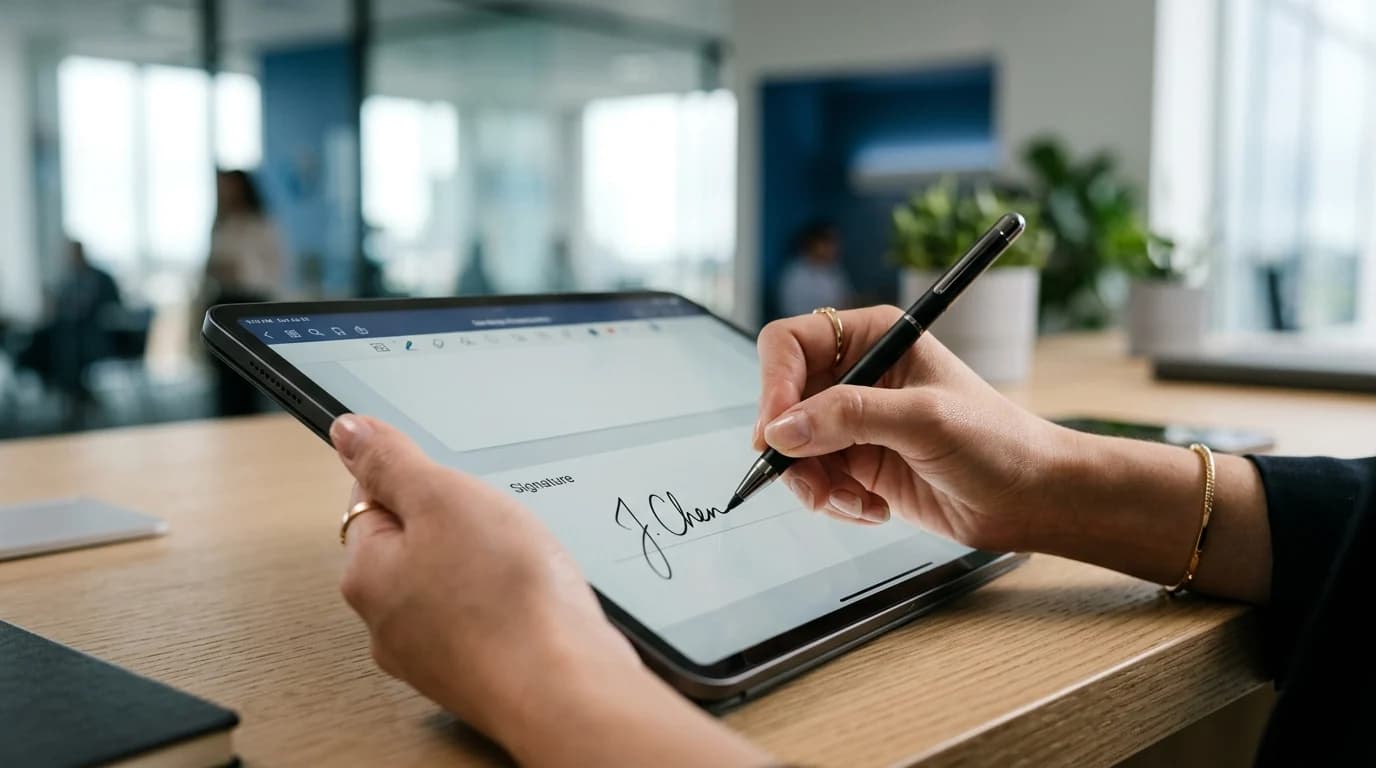
If you have searched for how to create an electronic signature, you have probably found a hundred guides that stop at the easy part: type your name in a script font, draw a squiggle with your mouse, or drop a signature image into a Word document. Those methods take thirty seconds and cost nothing. The problem is that almost none of them tell you whether the result will actually hold up when a counterparty disputes it. This guide covers both halves of the question, the quick free ways to make an e-signature and the part that matters in the EU, which is signing at the right eIDAS level so your signature carries real legal weight.
We will start with the free tools because they are genuinely useful for low-stakes documents. Then we will draw a clear line between a decorative signature and a verified one, and show how a national eID such as Smart-ID or Mobile-ID turns a typed name into evidence a court can rely on. None of this is legal advice, but it should give you a practitioner's mental model for choosing the right method for the document in front of you.
The quick free ways to create an electronic signature
The fastest way to make an e-signature is to type it. In most signing tools and PDF readers you enter your name, pick a handwriting-style font, and the tool renders it as a stylized image. A close cousin is the drawn signature: using a trackpad, mouse, touchscreen, or stylus you sketch your usual signature, and the tool captures the strokes as an image. A third option is to scan or photograph your wet-ink signature on white paper, crop it, save it as a transparent PNG, and reuse that image wherever a signature field appears.
All three produce what the eIDAS Regulation broadly calls an electronic signature: data in electronic form attached to or logically associated with other data, used by the signatory to sign. That definition is deliberately wide. A typed name in an email footer, a clicked I agree checkbox, and a scanned signature image all qualify as electronic signatures in the basic sense. They are quick, free, and fine for internal notes, informal approvals, and documents where nobody is likely to challenge who signed.
The catch is that these methods capture how the signature looks, not who actually applied it or whether the document changed afterward. An image of a signature can be copied from one PDF and pasted into another in seconds. That is exactly why the law distinguishes between a plain electronic signature and the stronger, verified levels we cover below, and why a free typed signature is sometimes not enough.
How to add an electronic signature in Word and PDF
Because so many people ask specifically about an electronic signature in Word, here is the honest version. In Microsoft Word you can insert a signature image (Insert, then Pictures) or use Insert, then Signature Line to add a labelled signature block that a recipient can later sign. Word also supports a digital signature feature under the signature line that binds your signature to a certificate, which is a meaningful step up from a pasted picture but depends on which certificate you use and whether the recipient can validate it.
For PDFs, most readers let you create electronic signature content directly. In a tool like Adobe Acrobat Reader you open Fill and Sign, choose to type, draw, or insert an image of your signature, place it on the page, and save. The PDF then carries your visible signature mark. This is convenient and works across devices, which is why PDF is the default format for sending documents around for signing.
Keep one thing in mind: inserting a signature image into Word or PDF makes the document look signed, but on its own it does not prove identity or lock the file against later edits. For anything that creates obligations, you want the signature cryptographically bound to both the signer's verified identity and the exact document content, so any tampering is detectable. That is the bridge from a free tool to a signature that counts.
Why a free typed signature is sometimes not enough
The eIDAS Regulation, formally Regulation (EU) No 910/2014, sets out three tiers of electronic signature. A simple electronic signature (SES) is the broad category that includes a typed name or a drawn image. An advanced electronic signature (AES) must meet four requirements in Article 26: it is uniquely linked to the signatory, capable of identifying the signatory, created using data the signatory can use under their sole control, and linked to the signed data so any later change is detectable. A qualified electronic signature (QES) is an advanced signature created with a qualified device and backed by a qualified certificate.
The practical difference is about evidence and dispute. A simple typed signature can be perfectly valid, but if the other side denies signing, you are left arguing about a picture. An advanced signature carries cryptographic proof of who signed and that the document is unchanged. A qualified signature goes furthest: under Article 25 of eIDAS, a QES has the equivalent legal effect of a handwritten signature and must be recognised across EU member states.
So the question is not which method is most legally valid in the abstract, but which level matches the risk of the document. A holiday request can take a typed name. A multi-year supply agreement, an employment contract, a significant purchase, or anything a regulator or court might scrutinise deserves at least an advanced signature, and sometimes a qualified one where national law or the counterparty requires it. Treat free typed signatures as a floor, not a default, and step up when the stakes do. This is general guidance, not legal advice for your specific document.
How to create an electronic signature that counts with a national eID
The reliable way to make an e-signature actually count is to sign with a verified national electronic identity rather than a font or a drawing. In the Baltics and across much of the EU, citizens already hold strong eIDs: Smart-ID and Mobile-ID are widely used, along with national ID-card certificates. When you sign with one of these, you authenticate with a method tied to your real, verified identity, and the signing service binds that identity to the exact document.
On DokDesk the flow is built around this. You open the contract on a single live version that both sides have negotiated, choose your signing method, and confirm with your national eID, for example by entering your Smart-ID or Mobile-ID PIN on your own phone. The signature is then cryptographically linked to both your identity and the document content, which is what satisfies the advanced electronic signature requirements in Article 26 and produces something far stronger than a pasted image.
This is the step most how-to guides skip entirely. The free methods answer how to make a signature appear on a page; signing with a verified eID answers who provably signed and whether the document is intact, which is what a counterparty or a court will actually ask. It is the difference between a document that looks signed and one that you can defend.
From SES to QES: matching the eIDAS level to the document
A simple rule of thumb: pick the lowest eIDAS level that you would be comfortable defending if the agreement were challenged. For routine, low-value, or internal documents, a simple electronic signature is proportionate and fast. For commercial contracts, HR documents, and anything that creates meaningful obligations, an advanced electronic signature with a verified eID gives you identity assurance and tamper-evidence. For the highest-stakes documents, or where a specific law or counterparty demands handwritten-equivalent effect, a qualified electronic signature is the target.
DokDesk supports simple and advanced electronic signatures today using national eIDs, and is architecture-ready for QES, meaning it is designed so that qualified trust providers and qualified signature devices can plug in. To be precise and honest: DokDesk does not itself issue qualified signatures and is not a qualified trust service provider. QES requires a qualified certificate and a qualified device from an accredited provider, and where you need that level you should confirm the specific qualified provider involved.
It is also worth knowing where the law is heading. eIDAS 2.0, Regulation (EU) 2024/1183, introduces the European Digital Identity Wallet, which aims to make verified national identity portable across the EU for signing, authentication, and credential sharing. The direction of travel is clear: away from decorative signatures and toward identity-backed ones. Building the habit of signing with a verified eID now means you are already aligned with where European digital signing is going.
Frequently asked questions
- Is a free typed or drawn electronic signature legally valid in the EU?
- It can be. Under eIDAS Regulation (EU) No 910/2014, a typed name or drawn image qualifies as a simple electronic signature, and a signature is not denied legal effect just because it is electronic. But validity in principle is different from being easy to defend in a dispute, because a simple signature does not prove who applied it or that the document is unchanged. For documents that create real obligations, an advanced signature with a verified eID is far stronger. This is general guidance, not legal advice.
- How do I add an electronic signature in Word?
- In Microsoft Word you can insert a signature image with Insert then Pictures, or add a structured signature block with Insert then Signature Line, which can be paired with a digital signature backed by a certificate. A pasted image makes the document look signed but does not prove identity or lock the file. For documents that matter, sign on a platform that binds your verified identity and the document content together rather than relying on a Word image alone.
- What is the difference between SES, AES, and QES under eIDAS?
- SES (simple electronic signature) is the broad category, including a typed name or drawn image. AES (advanced electronic signature) must meet four requirements in Article 26: uniquely linked to the signatory, able to identify them, created under their sole control, and linked to the data so tampering is detectable. QES (qualified electronic signature) is an advanced signature made with a qualified device and qualified certificate, and under Article 25 it has the legal effect of a handwritten signature across the EU.
- How do I make an electronic signature that will hold up if it is challenged?
- Sign with a verified national electronic identity such as Smart-ID, Mobile-ID, or an ID-card certificate rather than a font or a drawing. This ties your real, verified identity to the exact document and makes any later change detectable, which satisfies the advanced electronic signature requirements and produces evidence a counterparty or court can rely on. On DokDesk you confirm signing with your national eID, and the signature is cryptographically bound to both your identity and the document.
- Can DokDesk create a qualified electronic signature (QES)?
- DokDesk supports simple and advanced electronic signatures today using national eIDs, and is architecture-ready for QES, meaning it is designed so qualified trust providers and qualified devices can plug in. DokDesk does not itself issue qualified signatures and is not a qualified trust service provider. QES requires a qualified certificate and device from an accredited provider, so where you need handwritten-equivalent effect, confirm the specific qualified provider involved.